
We live in a world full of information and stimuli, and organising our ideas and activities is essential to avoid getting lost and make the most of the digital revolution.
A tool I find indispensable is Google Keep: it is a free tool for taking all kinds of notes and organising our activities.
It is useful in every context, and I find it perfect for people working in the world of marketing and creativity.
Are you out running or walking when a brilliant idea 💡 comes to mind?
Are you reading an article online and a sentence or figure strikes you?
Do you see something inspiring in the street and want to photograph it and capture that moment’s inspiration?
These are just some situations in which Keep can be used to jot down ideas, inspirations, suggestions and information quickly, wherever you are.
We know the creative process has no predetermined path: the brain works in the most unexpected contexts and moments, and if we do not capture an idea immediately, we risk losing it.
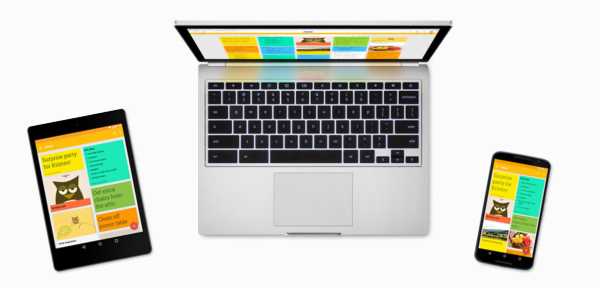
To use Keep, simply have a Google account and go to: https://keep.google.com/ for the desktop version. To get the most out of it, I strongly recommend installing the app too (download links below):
Once the app is installed, we can access and synchronise our notes from any device, as long as we are logged into Google.
Keep is also integrated directly into Gmail: you can add a note simply by clicking the yellow Keep icon in the toolbar at the far right of your inbox.
For me, it is on the move that a note-taking tool shows its full value: I create 90% of my notes in the app, then organise them at leisure on the web.
An exception is the shopping list 😉, which I create on the web and then check on my smartphone in the shop, so I do not forget anything 🥦.
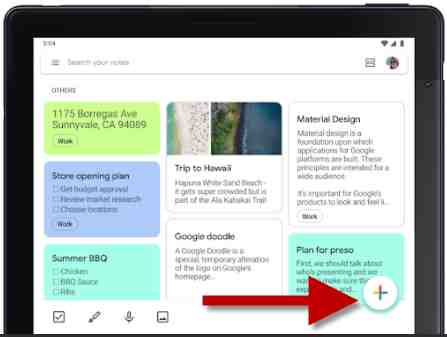
Creating a note is very simple: in the app, click the + symbol at the bottom right.
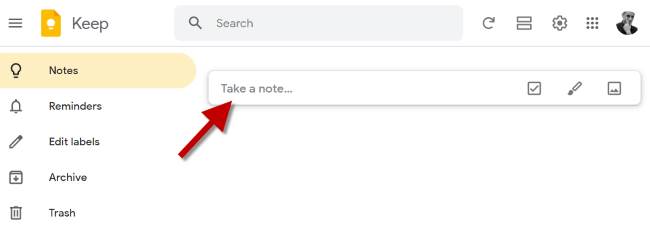
On desktop, start typing in the ‘Take a note’ field at the top.
Voice notes and notes with images
Typing on a phone can be awkward on the move. Sometimes an idea comes to me while running or paddling, so I use voice notes.
To record one, open the app and click the microphone symbol. In this case, I recommend writing the note’s title later, perhaps from your PC.
The useful thing is that Keep transcribes the text for us. We can therefore dictate an email we want to send or a post we want to create, and it is ready to send or publish.
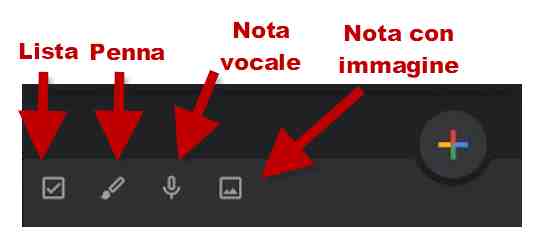
Are we out in nature or in the street and see a scene that sparks an idea? Open the app and add a note with a photo already taken, or take one there and then (using the last icon shown in the image above).
To create a to-do list, I recommend a list note (the first option in the image above). This lets us enter items and tick them off ✔️ as we complete them.
It is also the perfect note for a shopping list 😂
Extracting text from images (OCR)
Keep includes a very useful feature for recognising and extracting text from images.
For example, we might be browsing a book in a bookshop and find a particularly interesting sentence we want to remember and save.
Open the Keep app, add an image note with a photograph of the book page, then click the image and select ‘Grab image text’ from the menu at the top right (the three dots).
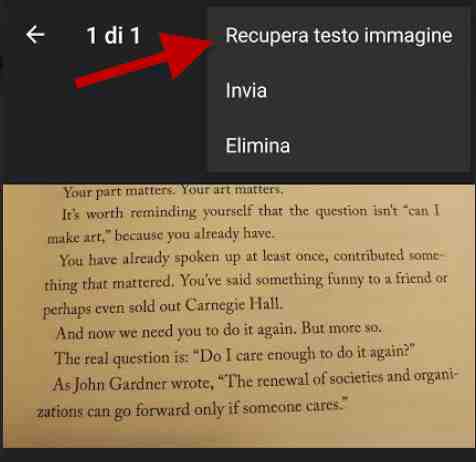
We now have not just the photograph but also the digital text in our note. With one click, we can copy it into a Google Docs document, or translate it first with a translator.
In practice, Keep includes an Optical Character Recognition (OCR) module to scan and retrieve text.
Note that the system also works for documents handwritten with a pen!
Sharing notes and labels
A PRO use of notes is sharing them with your team, friends or family.
For example, my boss (my wife) often writes the shopping list. By sharing it with me on Keep, we can both tick off items already purchased: I bought the fruit from our trusted greengrocer, while my wife picked up toiletries from a specialist shop.
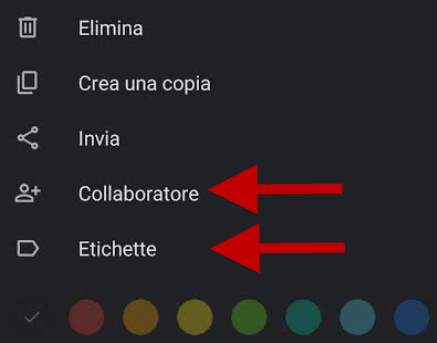
To share a note, open it, choose ‘Collaborator’ from the bottom menu (the three dots), and enter the person’s email address (of course, they must have Keep too).
Another interesting feature is adding labels (tags) to notes. For example, I use tags such as ‘Book ideas’, ‘Work ideas’, ‘Articles to read’, etc.
To add them, open the note and select ‘Label’ from the menu (see image above). You can assign an existing tag or create a new one.
Over time, our Keep will become very full, and labels let us organise the content well and browse it easily, particularly on desktop.
Indeed, our labels appear in Keep’s main menu.
Keep’s search engine
If we use Keep intensively, we will love its internal search engine.

We can add notes however we like, in no particular order and without titles or labels, because the search engine will let us find all our notes again.